Learning Photoshop's Tools

Photoshop Left Toolbar

Displayed Tool Buttons, no details
 Toolbar  Tool Name  Multiple Tools ? / Video
   
 
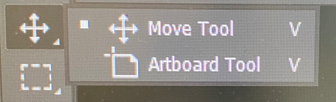
01 - Move Tool
 
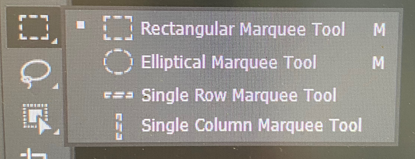
02 - Rectangular Marquee Tool
 
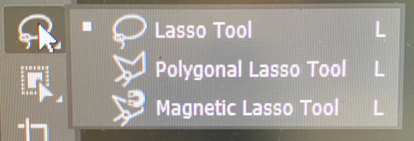
03 - Lasso Tool
 
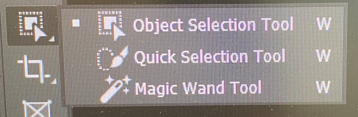
04 - Object Selection Tool
 
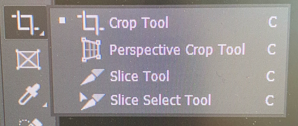
05 - Crop Tool
 
06 - Frame Tool
 
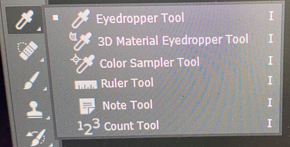
07 - Eyedropper Tool
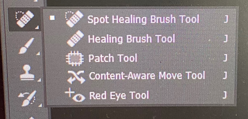
08 - Spot Healing Brush Tool
 
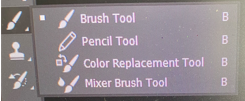
09 - Brush Tool
 
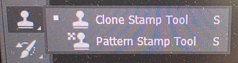
10 - Clone Stamp Tool
 
11 - History Brush Tool
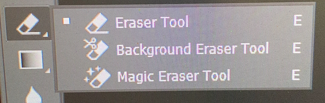
12 - Eraser Tool
 
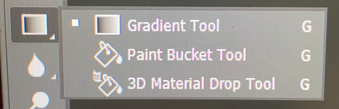
13 - Gradient Tool
 
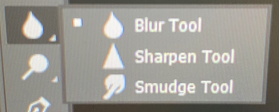
14 - Blur Tool
 
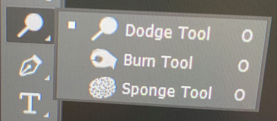
15 - Dodge Tool
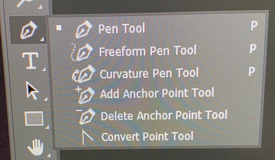
16 - Pen Tool
 
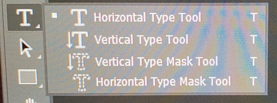
17 - Horizontal Type Tool
 
18 - Path Selection Tool
 
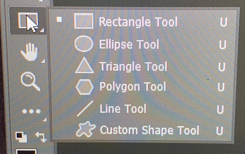
19 - Rectangle Tool
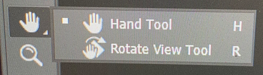
20 - Hand Tool
 
21 - Zoom Tool
 
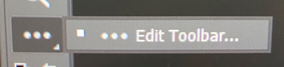
22 - Edit Toolbar
23 - Default/Switch For/Back Colr
 
24 - Set Fore/Background color
 
25 - Edit in Quick Mask Mode
 
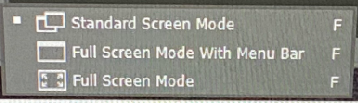
26 - Change Screen Mode
 
 
YES 2   01:03
 
YES 4   02:31
 
YES 3   04:58
 
YES 3   07:56
 
YES 4   10:42
 
NO 1     00:00
 
YES 6   13:18
YES 5   17:35
 
YES 4   22:18
 
YES 2   24:31
 
YES 2   26:15
YES 3   28:03
 
YES 3   29:56
 
YES 3   31:54
 
YES 3   33:49
YES 6   35:49
 
YES 4   37:50
 
YES 2   37:18
 
YES 6   39:28
YES 2   42:31
 
NO 1    43:21
 
NO 1    00:00
TBD     43:51
 
TBD     00:00
 
TBD     44:13
 
TBD     44:48

All Tools Table - Details

Displayed Tool Buttons, details
 Toolbar  Tool Name  Multiple Tools ? / Video  Full Listing / Video 
   
 
01 - Move Tool
 
02 - Rectangular Marquee Tool
 
03 - Lasso Tool
 
04 - Object Selection Tool
 
05 - Crop Tool
 
06 - Frame Tool
 
07 - Eyedropper Tool
08 - Spot Healing Brush Tool
 
09 - Brush Tool
 
10 - Clone Stamp Tool
 
11 - History Brush Tool
12 - Eraser Tool
 
13 - Gradient Tool
 
14 - Blur Tool
 
15 - Dodge Tool
16 - Pen Tool
 
17 - Horizontal Type Tool
 
18 - Path Selection Tool
 
19 - Rectangle Tool
20 - Hand Tool
 
21 - Zoom Tool
 
22 - Edit Toolbar
23 - Default/Switch For/Back Colr
 
24 - Set Fore/Background color
 
25 - Edit in Quick Mask Mode
 
26 - Change Screen Mode
 
 
YES 2   01:03
 
YES 4   02:31
 
YES 3   04:58
 
YES 3   07:56
 
YES 4   10:42
 
NO 1    00:00
 
YES 6   13:18
YES 5   17:35
 
YES 4   22:18
 
YES 2   24:31
 
YES 2   26:15
YES 3   28:03
 
YES 3   29:56
 
YES 3   31:54
 
YES 3   33:49
YES 6   35:49
 
YES 4   37:50
 
YES 2   37:18
 
YES 6   39:28
YES 2   42:31
 
NO 1    43:21
 
NO 1    00:00
TBD     43:49
 
TBD     00:00
 
TBD     44:13
 
TBD     44:48
 
 
01 - Move Tool   01:03 
Artboard Tool   01:29 
 
02 - Rectangular Marquee Tool   02:31 
Elliptical Marquee Tool   03:11 
Single Row Marquee Tool   04:15 
Single Column Marquee Tool   04:40 
 
03 - Lasso Tool   04:58 
Polygonal Lasso Tool   05:38 
Magnetic Lasso Tool   06:28 
 
04 - Object Selection Tool   00:00 
Quick Selection Tool   07:56 
Magic Wand Tool   09:06 
 
05 - Crop Tool   10:42 
Perspective Crop Tool   11:26 
Slice Tool   12:14 
Slice Select Tool   12:47 
 
06 -Frame Tool    00:00 
 
07 - Eyedropper Tool   13:18 
3D Material Eyedropper Tool   00:00 
Color Sampler Tool   14:08 
Ruler Tool   14:54 
Note Tool   16:03 
Count Tool   16:43 
 
08 -Spot Healing Brush Tool   17:35 
Healing Brush Tool   18:44 
Patch Tool   19:42 
Content-Aware Move Tool   21:03 
Red Eye Tool   21:38 
 
09 - Brush Tool   22:18 
Pencil Tool   22:46 
Color ReplacementTool   23:03 
Mixer Brush Tool   23:43 
 
10 - Clone Stamp Tool   24:31 
Pattern Stamp Tool   25:15 
 
11 - History Brush Tool   26:15 
Art History Brush Tool   26:55 
 
12 - Eraser Tool   28:03 
Background Eraser Tool   28:26 
Magic Eraser Tool   29:14 
 
13 - Gradient Tool   29:56 
Paint Bucket Tool   31:12 
3D Material Drop Tool   31:47 
 
14 - Blur Tool   31:54 
Sharpen Tool   32:32 
Smudge Tool   32:57 
 
15 - Dodge Tool   33:49 
Burn Tool   34:29 
Sponge Tool   35:10 
 
16 - Pen Tool   35:49 
Freeform Pen Tool   00:00 
Curvature Pen Tool   00:00 
Add Anchor Point Tool   00:00 
Delete Anchor Point Tool   00:00 
Convert Point Tool   00:00 
 
17 - Horizontal Type Tool   37:50 
Verticle Type Tool   38:14 
Verticle Type Mask Tool   00:00 
Horizontal Type Mask Tool   38:33 
 
18 - Path Selection Tool   37:18 
Direct Selection Tool   37:29 
 
19 - Rectangle Tool   39:28 
Ellipse Tool   40:34 
Triangle Tool   00:00 
Polygon Tool   40:45 
Line Tool   41:21 
Custom Shape Tool   41:49 
 
20 - Hand Tool   42:31 
Rotate View Tool   42:46 
 
21 - Zoom Tool   43:21 
 
22 - Edit Toolbar   00:00 
 
23 - Default or Switch fore/back   00:00 
 
24 - Set fore/back colors   00:00 
 
25 - Edit in Quick Mask Mode   00:00 
 
26 - Change Screen Mode   00:00 
Standard Screen Mode   44:48 
Full Screen Mode With Menu Bar   45:00 
Full Screen Mode   45:10 

Photoshop Individual Tools NEW

1 - Move Tool

More details on tools.
Count  Tool icons  Tool Name  Other Tools
1  
 
Move Tool


Move Tool
Outbound Tool
 
  • 01:03 Move Tool
    • Default Short Cut is "V"
    • Probably the most used tool in Photoshop.
  • If you have an unlocked layer, you can drag your entire image around the canvas.
  • 01:29 Artboard Tool
    • A feature brought over from Illustrator.
  • click and drag on your canvas, creates a square/rectangle containing a part of your image,
    • while it's size is growing, it displays its size in width and height as pixels
    • when you let go of the cursor, the rest of the original image is disregarded
  • it made a new artboard and names it “Artboard 1”
  • you can make many artboards on your canvas by clicking those plus sign buttons
  • the point of having many artboards
    • Is to have different designs or photos on the same canvas.
    • you have one photoshop file
      • and you can have all kinds of different comps in that photoshop file
      • the different artboards
        • are listed by name in the "Layers" panel on the right
        • as he deletes them, their names disappears from the panel
      • This can be handy if your doing multiple variations on the same project.

2 - Rectangular Marquee Tool

More details on tools.
Count  Tool icons  Tool Name  Other Tools
2  
Rectangular Marquee Tool


Rectangular Marquee Tool
Elliptical Marquee Tool
Single Row Marquee Tool
Single Column Marquee Tool
 
  • 02:31 Rectangular Marquee Tool
    • click and drag the mouse, to select a square or rectangle from your image
    • things you can do with the selection
      1. create a layer from what you selected with a Copy or Cut
      2. you can hide that new layer or hide the other layer and your left with your selection
  • 03:11 Elliptical Marquee Tool
    • click and drag the mouse, to select a circle or ellips/oval ?? from your image
      1. you can Cut that out, Paste it on to a new layer
  • 04:15 Single Row Marquee Tool
    • selects a single row of pixels
  • 04:40 Single Column Marquee Tool
    • selects a single column of pixels

3 - Lasso Tool

More details on tools.
Count  Tool icons  Tool Name  Other Tools
3  
Lasso Tool


Lasso Tool
Polygonal Lasso Tool
Magnetic Lasso Tool
 
  • 04:58 Lasso Tool
    • allows you to freehand select
    • as an example he enlarges an image and uses his mouse to select the area he wants
    • then he goes back to the Move Tool and drags the selected image away, he cut that straight out of the image
  • 05:38 Polygonal Lasso Tool
    • its a freehand selection tool with anchor points and straight lines
    • he uses the previous image example to demonstrate how to use the anchor points
      • to get a tighter selection from the image
    • and again he can go to the move tool and cut them straight out,
      • or paste them on to another layer
  • 06:28 Magnetic Lasso Tool
    • this tool will attempt to detect edges
    • he uses as an example a rock in the foreground, and a lake in the background, inside of his image
    • he uses the mouse to stay close to the line that is part of the rock,
      • and the tool places anchor points on its own
    • he also semonstrates that if he made a mistake, and some anchor points are off the mark,
      • he can use the Delete key or Backspace Key to undo some of the anchor points,
      • so he can try again to continue selecting the rock.
    • he clicks on the original anchor to close the selection
    • he can then cut and paste that on to another new layer
    • drag it around, replace it with something else, etc
    • Top | Details Table | Top of this Table

4 - Object Selection Tool

More details on tools.
Count  Tool icons  Tool Name  Other Tools
4  
Object Selection Tool


Object Selection Tool
Quick Selection Tool
Magic Wand Tool
 
  • 00:00 Object Selection Tool
    • no description in this video,
    • he refers to the button as the Quick Selection Tool
  • 07:56 Quick Selection Tool
    • you use this tool to click and drag over the object you want to select
    • it then tries to find the edges of the object you selected
    • sometimes this does not work well on certain images
    • he tried another rock with more constrats
    • he demonstrates this again with an image that has a logo on it
    • that was more successful because of lines are so crisp and the stark constrats and colors used
  • 09:06 Magic Wand Tool
    • this is a one click selection tool
      • in his demonstration he tries to select the sky
      • because the sky is gradiently going from a light blue to a darker blue
      • it selected a layer, one slice of the similar color, within the gradients of colors used
    • however, when he raised the "Tolerance" from 10 to 100, the tool selected the entire sky
      • unfortunetly, it also selected the lake below, so he tries a lower "Tolerance" of 50
  • When he goes to the other image with the logo, one click and the image is selected properly

5 - Crop Tool

More details on tools.
Count  Tool icons  Tool Name  Other Tools
5  
Crop Tool


Crop Tool
Perspective Crop Tool
Slice Tool
Slice Select Tool
 
  • 10:42 Crop Tool
    • we would crop things using this tool
    • you can set screen ratio, preset width, hight, ppi
    • he did drag around one corner, effecting the objects width and hight
  • 11:26 Perspective Crop Tool
    • once you click and drag what you want to crop
    • you can catch a corner tab and move it about, now using curvature display
    • it will crop the image and make it match the width and hight of its setting
  • 12:14 Slice Tool
    • with the Slice Tool you can go around and make selections
    • this is a tool used in web design, so that when you save it,
      • the pictures can be put back together like in a puzzel
  • 12:47 Slice Select Tool
    • you can select a particular slice that you made
    • if there were multiple slices, with this tool you can select them and move them around

6 - Frame Tool

More details on tools.
Count  Tool icons  Tool Name  Other Tools
6  
Frame Tool


Frame Tool


  • 00:00 Frame Tool
    • reserve for description

7 - Eyedropper Tool

More details on tools.
Count  Tool icons  Tool Name  Other Tools
7  
Eyedropper Tool


Eyedropper Tool
3D Material Eyedropper Tool
Color Sampler Tool
Ruler Tool
Note Tool
Count Tool
  • 13:18 Eyedropper Tool
    • the Eyedropper Tool is used to select a color and move it into a color palet
    • it shows up in our "Color Picker (Foreground Color)" screen and (24) Background/Foreground" color set
  • 00:00 3D Material Eyedropper Tool
    • description
  • 14:08 Color Sampler Tool
    • when he single clicks in the sky of the image
      • a screen pops up, gives us RGB value
    • when you click on the eyedropper icon on that screen,
      • a submenu pops up displaying other settings including different color settings, greyscale, 8, 16, or 32 bit
    • this tool is used to check the status of multiple colors and create a color scheme out of that
  • 14:54 Ruler Tool
    • the Ruler Tool is handy if you want to figure out the distance between two objects
    • he uses the mouse to go from the first object to the second
    • and when he's done, the speaker points out the "L1: 1873.31" in pixels
    • "A: 15.3" degrees our angle is 15.3 degrees
    • he uses the "Clear" button to clear out the line
  • In another example:
    • he slightly tilts the picture, causing the line between the lake and the mountains to no longer be level, but tilited.
      • he is setting up the image so he can show you another way to use the Ruler Tool.
    • the object of this example is to strighten out the horizon or the line between the lake and the mountains
    • he clicks and drags a line just above the seperation of the lake and the mountains
      • maintaining the same angle as the seperation of the lake and the mountains
      • at the top of the screen is a "Straighten Layer" button that he now clicks
        • and the image is pretty close to where it originally was
        • with the separation of the lake and the mountains now horizontally correct
        • Top | Details Table | Top of this Table
  • 16:03 Note Tool
    • the Note Tool is great if your calaborating or want to make a note for yourself
    • when you click inside your image, a "Notes" tab displayed itself, in a panel, on the right side of the screen
    • he wrote "Remove these people." obviously from the image
    • The little yellow Note icon will stay displayed on the image
    • when someone else or you sees that little icon, you click on it,
      • the Notes dialog box is displayed with the note for you to read.
    • you can even add an "Author:" in the text box above to identify yourself as the Note's author
    • Top | Details Table | Top of this Table
  • 16:43 Count Tool
    • to demonstrate how to use the Count Tool
      • he uses another image with a lot of office supplies and laptops being used
    • he then starts clicking objects, and as he does so it leaves behind a number
      • so the first object has a label displaying the number one.
    • He then adjust the "Marker Size:" from 2 to 10 and the "Label Size:" fom 12 to 57
    • when he clicks the color box, the "Color Picker (Count Color)" dialog box appears
      • he then changes the color so you can see it better
      • which changes the font color of that number one icon he left behind
    • He then clicks an aditional 5 objects leaving behind a label with the next number 2, 3, 4, 5, & 6
    • Top | Details Table | Top of this Table

8 - Spot Healing Brush Tool

More details on tools.
Count  Tool icons  Tool Name  Other Tools
8  
Spot Healing Brush Tool


Spot Healing Brush Tool
Healing Brush Tool
Patch Tool
Content-Aware Move Tool
Red Eye Tool
 
  • 17:35 Spot Healing Brush Tool
    • he goes back to the image of the lake, mountains, and a few people
    • he zooms into 2 people walking
    • he verifies that the layer is selected in the Layes tab on the right side panel
    • On top of the screen, "Type:" has "Content-Aware"
    • after selecting the tool, he clicks and drags over the person on the left
    • when he lets go of the mouse, the person is gone from the image,
      • and replaced by the background of the mountain side.
      • it filled in the space with image data it collected from the surrounding space
    • he does this again with the second person, and it did a good job of replacing her image with the background.
    • he also had to erase their reflections in the lake.
  • 18:44 Healing Brush Tool
    • this tool is based on a selection you make
    • he holds the ALT key on his keyboard, click the mouse, and make a selection in the water of the image,
      • he then uses that, to get rid of the second reflection from the previous tool description
    • the tool then tries to copy that information over the reflection
    • it worked moderately well, a little smudgey
    • he admits that the Spot Healing Brush Tool worked a little bit better
  • 19:42 Patch Tool
    • he zooms in on two other folks standing on a hill
    • he says: its kind of like the freehand margue tool
      • and he starts to draw a line around the two people with this tool
      • when he connects the line,
      • the line itself is displayed as black and white short lines around the object he's selecting
    • then you have a choice, "Source" or "Destination"
      • he points to these two buttons above
  • he selects "Source"
    • what this will do is replace the selected object
      • with the object he can drag around looking for the best match to replace the people with
    • and then its going to blend it
    • you can sort of see the edges of the replacement selection
      • but it did a pretty good job of getting rid of those people
  • he's going to undo that, that places the two people he replaced back to where they were
  • next he selects the "Destination" button
    • as he moves around the mouse, you can see that he's ready to reposition the copies of those two people elsewhere,
      • leaving the original people where they are
    • it does a pretty good job about copying them and blending the edges
    • he undo's that move to prepare the image for the next tool demonstration
    • Top | Details Table | Top of this Table
  • 21:03 Content-Aware Move Tool
    • this is very similar to the Patch Tool with a couple of different options
    • he uses the mouse to draw a line around the two people, and when he connects the lines,
      • they turn to the black and white lines
    • he drags them over, he moves them a few feet from where they were by clicking the OK button
      • the OK button displays with a checkmark near the top of the screen.
    • the difference is that the tool literally moved the object for you
      • and replaces the original location that was cut out, with content aware fill
    • he undo's that move to prepare the image for the next tool demonstration
    • Top | Details Table | Top of this Table
  • 21:38 Red Eye Tool
    • this should be very self explanatory, there have been red eye tools around for a long time
    • he displays an image of himself with red eye, and enlarges it to make the red eye bigger
    • he places the mouse cursor over one red eye and clicks the mouse, then moves to the other eye and clicks that,
      • the red "spot" becomes a black "spot"
    • he points to two settings above
      • the "Pupil Size" and the "Darken Amount" settings
    • Top | Details Table | Top of this Table

9 - Brush Tool

More details on tools.
Count  Tool icons  Tool Name  Other Tools
9  
Brush Tool


Brush Tool
Pencil Tool
Color Replacement Tool
Mixer Brush Tool
 
 
  • 22:18 Brush Tool
    • when he clicked the Brush Tool, the mouse cursor turned into a circle
      • and some of the Brush Tool's property buttons are displayed on top of the screen
    • he clicks the size button and a pop up screen displays:
      • Size, Hardness, Soft Round, Hard Round, and some other settings
      • Size of the brush
      • Hardness - softness of the edge of the brush, 0 is max softness
  • Next he selects the "Color Picker (Foreground Color)" dialog box
  • from the left toolbar's "Set Foreground or Background Colors" button
    • he selected red, and clicked it's OK button, the dialog box disappears, the circle mouse cursor is displayed
    • and when he clicks the mouse it looks like he's painting red lines all over the image
  • 22:46 Pencil Tool
    • The Pencil Tool reminds the speaker of Microsoft's Paint, and their Pencil Tool.
    • Very rudentary, basic kind of tool for drawing
    • he draws a continuous line through out the image
    • Top | Details Table | Top of this Table
  • 23:03 Color Replacement Tool
    • he switches to the image with the logo and name of a company
    • he opens the "Color Picker (Foreground Color)" dialog box
      • he selects bright red
    • the tool is trying to find the edges of whatever he is painting
      • and what's really happening is that there are two letter O's
      • he is aiming the mouse cursor for the inside of each letter O
      • and it's blending the colors of the O's from its original color to blend with that bright red
      • different shades of red are created depending on the original color of the object
  • 23:43 Mixer Brush Tool
    • with the red still selected
      • he drags the mouse over part of the logo
      • actually dragging back and fourth with the cursor as if you were painting a wall with a brush
    • its trying to mix the two colors
      • the original color and the color selected for the tool
      • and have a little bit of a natural brush feel
    • its a nice tool if you are doing some digital painting
    • Top | Details Table | Top of this Table

10 - Clone Stamp Tool

More details on tools.
Count  Tool icons  Tool Name  Other Tools
10  
Clone Stamp Tool


Clone Stamp Tool
Pattern Stamp Tool


  • 24:31 Clone Stamp Tool
    • he goes back to the image of the lake and mountains
    • that tool displays either a small circle with cross lines and an x inside of a smaller circle,
      • or a plain circle as its cursor when something is selected
    • to make a selection with this tool, he presses the ALT key on the keyboard
    • he selects one persons head and upper torso
    • and when he moves the cursor away from what he selected
      • it gives you a preview of what he is cloning
    • he clicks the mouse and drags around the figure's head and around where their bodies should be
      • and the rest of the two people are placed in their new cloned spot
      • just several feet behind the original
  • With the brush settings you can control the hardness and the size
    • brush setting is one of the first buttons near the top on the left
  • there are more settings that he won't go into now,
    • but he's pointing to the different settings displayed near the top of the screen
    • example: Mode, Opacity, Flow, Aligned, "Sample: Current and Below"
  • 25:15 Pattern Stamp Tool
    • he uses the image of himself holding a large video camera
    • he also adds a new layer
    • his goal is to place a pattern on his face
  • once he selects the tool from the left hand toolbar
    • he uses the "Pattern picker" from that top toolbar
    • he selects a pattern from the Pattern picker
  • he then clicks and drags the pattern on the cursor to his face
  • 25:48 Since he has this other new layer, he's going to go to his "blending modes" located in the "Layers" panel.
    • On the video it's set to "Normal", and includes a drop-down menu for the blending modes.
    • I noticed the drop down did not work until I added a new layer.
    • He selects "Multiply" from the drop-down menu
      • that will take everything that is bright (from the original image of his face), translucent.
    • He then lowers the "Opacity" field, by using its slider tool, to change from 100% to 24%

11 - History Brush Tool

More details on tools.
Count  Tool icons  Tool Name  Other Tools
11  
History Brush Tool


History Brush Tool
Art History Brush Tool


  • 26:15 History Brush Tool
    • he starts with the image of the lake and the mountains
    • and he says: lets pretend we made some modifications
    • he goes to the "Spot Healing Brush Tool"
      • he uses his mouse to go over the two people walking
      • and when he's done, they disappear, no longer displayed in the image, replaced by it's background
    • he uses the same tool to "get rid of this guy", another figure below the two, that are no longer displayed
    • all this is going on in "Layer 0"
    • he then says: you decided to make a change by just taking out the solo guy
      • and keep the two original figures in the image
  • 26:41 he goes back to the "History Brush Tool"
    • and he simply aims the cursor at where the two people originally were
    • and when he clicks the mouse they reappear
    • leaving the solo guy out of the image
  • 26:55 Art History Brush Tool
    • he says this is a really interesting tool that he doesn't really use
    • he says it "artifies" the image you are working on
  • 27:06 there are different styles, located in a drop-down menu from the top toolbar
    • in the video "Style: is set to "Tight Short"
    • he changes the style to "Dab" from the Style's drop-down menu
  • 27:10 he than moves the cursor around the sky of the image
    • creating a cloud effect, but it's color is different shades of blue closely related to the original color
    • he says: this is going to dab that sky for me
    • Goggle's dictionary says Dab is:
      • press against (something) lightly with a piece of absorbent material in order to clean or dry it.
      • or: aim at or strike with a light blow.
    • he does this to the entire sky displayed in that image
  • 27:33 he now uses the tool on the left side of the image which is a large hill with two people on it
    • he then clicks and drags over that hill creating circles with different colors from that hill
      • light brown, dark brown, grey, black, etc
    • he used the tool on the entire hill
    • he then says: its going to take these colors, the primary colors that it detects from your image
      • as he is saying that he is doing the same thing to the rock on the left side of the image
      • and different shades of grey and brown are used to create those circles left behind from the moving cursor
    • he says: it creates this artistic rendering ...
    • he admidts he doesn't have any finesse when it comes to this tool
    • Top | Details Table | Top of this Table

12 - Eraser Tool

More details on tools.
Count  Tool icons  Tool Name  Other Tools
12  
Eraser Tool


Eraser Tool
Background Eraser Tool
Magic Eraser Tool


  • 28:03 Eraser Tool
    • It erases the image where your cursor is
      • when you drag the mouse, it erases the image where the mouse was
    • it also has it's own tools that you can set in that top toolbar
      • you can change properties on your brushes, size, hardness
      • for softer edges when you erase
    • you can also change "Mode" from "Brush" to "Pencil" or "Block"
    • you can also change the "Flow" and "Smoothing" properties from that toolbar
  • 28:26 Background Eraser Tool
    • he changes the image back to the logo
    • he places the cursor next to the outside edge of the logo
      • note: the logo is blue and the background is white
    • and while he uses the tool you can see the white background getting erased
      • and he states that the tool can detect the border of the blue logo and will not erase that
      • he states its only erasing everything behind it or next to it
        • meaning the white background around the blue logo
  • 29:01 he made a mistake by accidentally taking out some of the logo
    • I couldn't see any mouse movement on the video
      • so I think he used undo from the keyboard
      • and he lost very little of his work
      • that he can make up in seconds
    • he says if the brush goes on top of that object too much
  • 29:14 Magic Eraser Tool
    • he says its kind of similar to the Magic Wand Tool
    • he clicks part of the logo, and that entire "section" of the logo got selected and erased
    • it detects edges and colors, contrast, basically ...
    • it will erase what ever you're clicking
    • he starts clicking several parts of the logo, and with each click that section gets erased
  • 29:34 you can change the Tolerance above in the toolbar
  • 29:42 or you can click on the white background, and the entire background within those boundries will be erased
    • the background within the two letters O's were not erased
      • becase the letter O kept a border around the inside background.
    • he unchecked "Contiguous" from the toolbar and clicked the white background

13 - Gradient Tool

More details on tools.
Count  Tool icons  Tool Name  Other Tools
13  
Gradient Tool


Gradient Tool
Paint Bucket Tool
3D Material Drop Tool


  • 29:56 Gradient Tool
    • he displayed the lake and mountain image
    • then he says: if your a photographer, you may use a graduated filter from time to time
      • but inside of Photoshop you can also use a gradient to replicate this filter
      • I'm going to create a new layer, make sure my colors are black and white there
        • I'm assuming in that bottom button where you control the color of background and foreground
    • he clicks and drags from the top of the image all the way to the bottom
      • the image is now a top black to bottom white gradient
    • then he goes to his blending modes
      • and changes it from "Normal" to "Multiply"
    • and in the lake and mountains image, its dark on top, all the way to black,
      • and lighter towards the bottom of that image
  • 30:39 he wants to decrease the Opacity from 100% to 27%
    • if you have a really bright sky and you want to try to even it out a little bit, you can use this technique.
  • 31:00 there are other settings in the toolbar, ie: the five gradient settings of:
    • 1-Linear Gradient, 2-Radial Gradient, 3-Angle Gradient, 4-Reflected Gradient, 5-Diamond Gradient
    • he chooses Radial Gradient, which displayed a black circle changing to white
  • 31:12 Paint Bucket Tool
    • he goes back to the logo image
    • lets say we want to change this background very quickly
      • the background color of this image is white
    • he selects Red from the Color Picker
      • and with a single click the background is now red
    • he undo's his work turning the background back to white
  • 31:36 By turning on "Contiguous", the tool is still set to red,
  • 31:47 3D Material Drop Tool
    • since we are not working with 3D Materials, he is going to skip this

14 - Blur Tool

More details on tools.
Count  Tool icons  Tool Name  Other Tools
14  
Blur Tool


Blur Tool
Sharpen Tool
Smudge Tool


  • 31:54 Blur Tool
    • he displays an image of himself and friend in front of a large white Amsterdam
      • sign outside a museum with a few people walking around in the background
    • he wants to blur one person face out from the image, so he zooms in on that person's face
  • 32:05 he clicks and moves his mouse back and fourth over his face, bluring the person's face
    • he also blurs the face of the female next to him
    • then he zooms out to look at the image, and says: very nice.
  • he undo's that
  • 32:32 Sharpen Tool
    • he zoom's in to one of his friend's eye, the image looks very pixelated
    • he places the cursor on the eye, and clicks on it a couple of times
    • it sharpens the detail, helps the contrast a bit
    • Top | Details Table | Top of this Table
  • 32:57 Smudge Tool
    • he zooms into another person's face and says:
      • maybe I want this face to look like a vampire
    • so he places the cursor over the top of his ear and drags it up, it does get longer and looks pointy
    • then he grabs the back of the ear and drags that out a little
    • he pulls his nose out a little bit
    • he widens the mouth verticly
  • 33:32 he says: as you can see, this is a entirely destructive
    • it really blured the skin
    • so not a great way to use this tool
      • a better tool to use is under "Filter" from the top menu bar, and "Liquify..." from its sub-menu
      • but he says that's a tool for a different show
      • Top | Details Table | Top of this Table

15 - Dodge Tool

More details on tools.
Count  Tool icons  Tool Name  Other Tools
15  
Dodge Tool


Dodge Tool
Burn Tool
Sponge Tool


  • 33:49 Dodge Tool
    • he zooms into the female's eyes again
    • if he clicks and drags the cursor over the eye, the Dodge tool will increase the brightness of those eyes
      • he uses this tool on four eyes, two for the female, two for himself
    • it sort of like a spot treatment
      • he also uses it on the female's teeth, it made them brighter, more whiter
  • 34:29 Burn Tool
    • he undo's his changes from the previous exercise
    • the Burn Tool does the exact opposite of the Dodge tool
    • he zooms into one of his eyes ...
      • he then clicks and drag over the eye, and the white part gets darker and darker
    • he zooms back out and his two eyes look like creepy black eyes, you can't even see a pupil in his eyes
    • he says: it's just a tool for darkening
    • he than attempts to darken his scalp, I thought it works a little
    • Top | Details Table | Top of this Table
  • 35:10 Sponge Tool
    • there are two different Modes for this Sponge tool
      • "Desaturate" and "Saturate"
    • on the same image, zoomed into their faces
      • he says he looks a little pale
      • so he can saturate his skin, it turns a bit redder
        • spot saturate the skin a little bit
      • so he uses the tool to saturate his and her faces
      • he says: I'm going to make those cheeks a bit more rosey
  • 35:36 he can change the mode to "Desaturate"
    • he reduces the size of the tool from 65 to 20
    • and he places the cursor on one of the female's eyes
    • he says he is desaturating the eyes
    • Top | Details Table | Top of this Table

16 - Pen Tool

More details on tools.
Count  Tool icons  Tool Name  Other Tools
16  
Pen Tool


Pen Tool
Freeform Pen Tool
Curvature Pen Tool
Add Anchor Point Tool
Delete Anchor Point Tool
Convert Point Tool
 
  • 35:49 Pen Tool
    • he displays the image with the logo
    • he says: Lets say I want to take this jpg and turn into a vector shape
    • the first step is to take my pen, and click on the top of the logo
      • that places a little square at that point called an anchor point
    • he clicks again at the bottom of a curve,
      • that starts on the right side of the point, heading down to where he clicked the second time
      • he holds that and drags out to move/adjust the mouse cursor which is manipulating the curve boundry,
      • he says: and you can see its creating the curve,
        • he is going to match the curve with the logo
      • then he release the button on the mouse, possibly creating another anchor point
    • he is going to hold ALT, to straighten out the line
      • he says: make it match the logo
    • he clicks further down at another point, to create another anchor point
    • he quickly creates the rest of the anchor points needed for this object/logo
  • 36:50 he says: we have a couple of options
    • we can right-click, which displays a submenu
    • he selects "Make Selection...",
    • the "Make Selection" dialog box is displayed
      • he points out that "Operation" is set to "New Selection"
    • he then click's it's OK button
    • the borders of the logo that you just created are selected
      • the border lines are now dashed lines slowly moving around the object
  • 36:55 he says: Or he wants to define a custom shape
    • from the submenu he selects "Define Custom Shape..."
      • a "Shape Name" dialog box appears
        • with an image of your custom made shape on the left
        • and "Name: Shape 1" text box on the right
        • and OK and Cancel buttons
      • you can save it and it will be inside of Photoshop free to use at a latter time
      • Top | Details Table | Top of this Table

Other Pen and Anchor Point Tools

Path Selection Tool

Direct Selection Tool

  • 37:29 Or you can use the "Direct Selection Tool"
  • 00:00 Freeform Pen Tool
    • Description TBD
  • 00:00 Curvature Pen Tool
    • Description TBD
  • 00:00 Add Anchor Point Tool
    • Description TBD
  • 00:00 Delete Anchor Point Tool
    • Description TBD
  • 00:00 Convert Point Tool
    • Description TBD

17 - Horizontal Type Tool

More details on tools.
Count  Tool icons  Tool Name  Other Tools
17  
Horizontal Type Tool


Horizontal Type Tool
Verticle Type Tool
Verticle Type Mask Tool
Horizontal Type Mask Tool
 
 
  • 37:50 Horizontal Type Tool
    • is exactly what it sounds like
    • he's going to click and start typing
    • what he types starts at where he clicked and is displayed in a horizontal direction
  • 38:04 he switched to the Move Tool so he can move that text he just entered around
    • he deletes or undo's that text
  • 38:14 Verticle Type Tool
    • again, its exactly what it sounds like
    • he's going to click and start typing
    • what he types starts at where he clicked and is displayed in a vertical direction
    • one letter at a time is displayed below the letter on top of it as your typing
    • and again he can move it around with the Move Tool
  • 38:27 Verticle Type Mask Tool
    • he says: what about these other two tools, the Verticle and Horizontal Type Mask tools
    • works similarly to the Horizontal Type Mask Tool as explained below
    • Top | Details Table | Top of this Table
  • 38:33 Horizontal Type Mask Tool
    • he wants to demo this one before the verticle one
    • it acts as the Horizontal Type Tool as your typing
    • he than clicks the Check Mark button from the toolbar for the OK
      • and the tool selects the text you just typed
      • you see it on the screen as just the letter's boundries
      • he says it made a selection in the shape of the letters you typed
  • 38:52 by going to the "Select" item from the menu bar
    • he selects "Transform Selection" from the "Select" submenu
      • and that will allow us to move that around
      • he positions the text in a center position on the logo
  • 39:03 we could do a couple of different things
    • you can add a mask to this layer
    • he does so by clicking the "Add layer mask" button towards the bottom right corner of the Photoshop window
    • or if we undo that we could hit delete or backspace on the keyboard
    • you see the layer white and grey checkered boxes inside the letters
    • he says it cut those letters out of our image
    • Top | Details Table | Top of this Table

18 - Path Selection Tool

More details on tools.
Count  Tool icons  Tool Name  Other Tools
18  
Path Selection Tool


Path Selection Tool
Direct Selection Tool
 
 
  • 37:18 Path Selection Tool
  • 37:29 Direct Selection Tool

19 - Rectangle Tool

More details on tools.
Count  Tool icons  Tool Name  Other Tools
19  
Rectangle Tool


Rectangle Tool
Ellipse Tool
Triangle Tool
Polygon Tool
Line Tool
Custom Shape Tool
 
  • 39:28 Rectangle Tool
    • he calls all these tools within the "Rectangle Tool" submenu, the shape tools
    • he first selects the Rectangle Tool, which displays its own settings in that top toolbar
    • he clicks the Fill button and the Fill palet is displayed
      • he says: you can fill it with any color you like
    • he says: you can also add a stroke to it, or just an outline if you will
    • you can adjust the size of the outline/border
  • 39:52 he then clicks and drags, and a rectangle with the fill color and the size of the border already determined,
    • is displayed in the image
    • and he says: there's our shape
  • 39:59 he deletes the new rectangle
    • and he says: if you would like to create a perfect square
    • just hold the Shift key and Drag, and you will always have a perfect square
    • again displayed with the border settings and Fill color
    • Top | Details Table | Top of this Table
  • 40:08 Rounded Rectangle Tool
    • this particular tool does not show up in the submenu for the Rectangle Tool in Adobe Photoshop 2021
    • the instructor of this video is using an Apple, I'm using Windows
  • 40:13 as soon as he selects the Rounded Rectangle Tool
    • some settings are added to the toolbar for the rounded corners
    • if you go over to the Radius setting in the toolbar
      • the slider control for the setting is used for rounding the corners
      • he is going to leave it at "100 px"
    • he then clicks and drags
      • and as he does so, you can see the rectangle with the rounded corners take shape, without a fill
        • and with its width and hight displayed while the mouse button is held,
        • changing its numbers as the object is bigger or smaller
      • when he lets go of the mouse, the fill color and border settings are used
    • and he says: we have a 100 pixel radius on that corner
      • then a slider control is displayed on that left top corner
      • he doesn't use that slider control, it just vanishes from the video without explanation
    • he then deletes that rounded rectangle shape
    • Top | Details Table | Top of this Table
  • 40:34 Ellipse Tool
    • still using the same border and fill settings
    • just by selecting that tool, he can creates circles or ellipses instantly
    • using the Shift key you can make a perfect circle
    • Top | Details Table | Top of this Table
  • 00:00 Triangle Tool
    • he does not have the Triangle Tool on his version of Photoshop
  • 40:45 Polygon Tool
    • the Polygon Tool has some unique settings
      • he talks about the Sides property, you select how many sides your polygon will display
      • it was originaly set to 19, he reset it to 3
      • click and drag, you have a triangle using the same border and fill settings previously set
      • if you use the Move Tool, you can move the shape around your image
    • he deletes the triangle so he could show us something else
  • 41:05 if we change the Sides property from 3 to 5
    • he says: we can create a pentagon, with the same fill and border settings
    • he can move it around with the Move Tool
  • 41:13 he says: or we can add 20, meaning change the Sides from 5 to 20
    • a shape with 20 sides is displayed, while creating it, it's width and hight are displayed until you let go of the mouse
    • when you let go of the mouse, the shape is displayed on the screen using your fill and border settings
    • Top | Details Table | Top of this Table
  • 41:21 Line Tool
    • the Line Tool is based on Weight
    • so if we have a 50 pixel weighted line, he's going to take the stroke off of this one
    • he draws a line up and down, it's red, and is 50 pixels wide
    • he also creates a 5 pixel line that is thinner than the 50 pixel line
    • Top | Details Table | Top of this Table
  • 41:49 Custom Shape Tool
    • these are shapes you either imported or came with Photoshop
      • he displays them by clicking the Shape button from the toolbar
      • I don't have as many shapes as he has
  • 42:06 he chooses a rabbit from his set of shapes
    • by clicking the little square that the rabbit icon occupies
    • then you click and drag until you have the size you want for your shape, on your image
    •  
    • however what the instructor did was first choose the rabbit
      • the rabbit icon now appears in the "Shape" property setting in the toolbar
    • before planting the newly choosen shape on his image
      • he changes the "Fill" color from red to blue
    • then he drags and drops the rabbit on to the image until he gets the size he wants
      • as your dragging the mouse, the shape's width and height are displayed
    • when he lets go of the mouse button
      • the rabbit is displayed in Blue with anchor points on the shape's borders
    • he then chooses the "Direct Selection Tool" so he can use the mouse to move those anchor points around
      • by dragging an anchor point to what ever position you want it to be
      • it keeps it fill color as your doing that
      • he demos this with other anchor points
      • Top | Details Table | Top of this Table

20 - Hand Tool

More details on tools.
Count  Tool icons  Tool Name  Other Tools
20  
Hand Tool


Hand Tool
Rotate View Tool
 
 
  • 42:31 Hand Tool
    • the purpose of the Hand Tool is to move the Canvas around
    • very simple to use
  • 42:46 Rotate View Tool
    • he zooms out so the entire image containing the logo, the company name, and it's white background
      • does not take up the entire area that we work in, in Photoshop
    • he says: I wonder what this logo will look like sideways
      • he presses the mouse and he can turn the whole page on its side
      • he says: if you hold the Shift key, it will lock into 15 degree increments
        • or something like that
      • as he is turning the page, an arrow displays in the middle of the page, the original top and bottom directions
  • 43:19 there is a "Reset View" button in the toolbar
    • so you can reset the page or image back to its original position

21 - Zoom Tool

More details on tools.
Count  Tool icons  Tool Name  Other Tools
21  
Zoom Tool


Zoom Tool


  • 43:21 Zoom Tool
    • he calls this the magnifying glass or the zoom tool
    • by default its a magnifying glass, so you click on what you want to magnify
  • 43:36 if you hold the ALT key and click it will demagnify or zoom out

22 - Edit Toolbar

More details on tools.
Count  Tool icons  Tool Name  Other Tools
22  
Edit Toolbar


Edit Toolbar


  • 00:00 Edit Toolbar
    • Description TBD

23 - Foreground Background Color Switch

More details on tools.
Count  Tool icons  Tool Name  Other Tools
23  
Left side: Default foreground and background colors
Right side: Switch foreground and background colors
 
 
Default or Switch foreground and background colors


  • 43:51 Default or Switch foreground and background colors
    • the icon on the left - Help Tip displays "Default Foreground and Background Colors (D)"
      • he says: these little guy here,
      • they will change your colors back to the default Black foreground and White background colors
      • you can also do this by hitting D on your keyboard
      • and if you want to switch background and foreground colors you can hit X

24 - Set Foreground Background Color

More details on tools.
Count  Tool icons  Tool Name  Other Tools
24  
Left side: Set foreground color
Right side: Set background colors
 
 
Set Foreground or Background colors


  • 00:00 Set foreground and background colors
    • Description TBD

25 - Edit in Quick Mask Mode

More details on tools.
Count  Tool icons  Tool Name  Other Tools
25  
Edit in Quick Mask Mode


TBD


  • 44:13 Edit in Quick Mask Mode
    • he called this the Quick Selection Mask Tool
    • once you have that selected, go ahead and take a brush,
      • and you can brush over top of whatever you want to mask out
    • and if you click the tool again, in that left handed toolbar, it will give you a selection
    • he then clicks the "Add Layer Mask" button located in the panel's the bottom right set of buttons
      • After clicking the "Add Layer Mask" button
      • and it will mask that out

26 - Change Screen Mode

More details on tools.
Count  Tool icons  Tool Name  Other Tools
26  
Change Screen Mode


Standard Screen Mode
Full Screen Mode With Menu Bar
Full Screen Mode
 
  • 44:48 Change Screen Mode
    • on the video, this has 3 menu options
      • Standard Screen Mode
      • Full Screen Mode With Menu Bar
      • Full Screen Mode
    • F is the keyboard shortcut
  • 00:00 Standard Screen Mode
    • we still have our toolbars and side panels
    • this is the mode we were in the entire time of this video
  • 45:00 Full Screen Mode With Menu Bar
    • we still have our toolbars
    • the user interface is slimmed down significantly
  • 45:07 Full Screen Mode
    • this mode is handy when your painting and you want as little distraction as possible

Video's Table of Content for all tools explained


Other PS things to learn


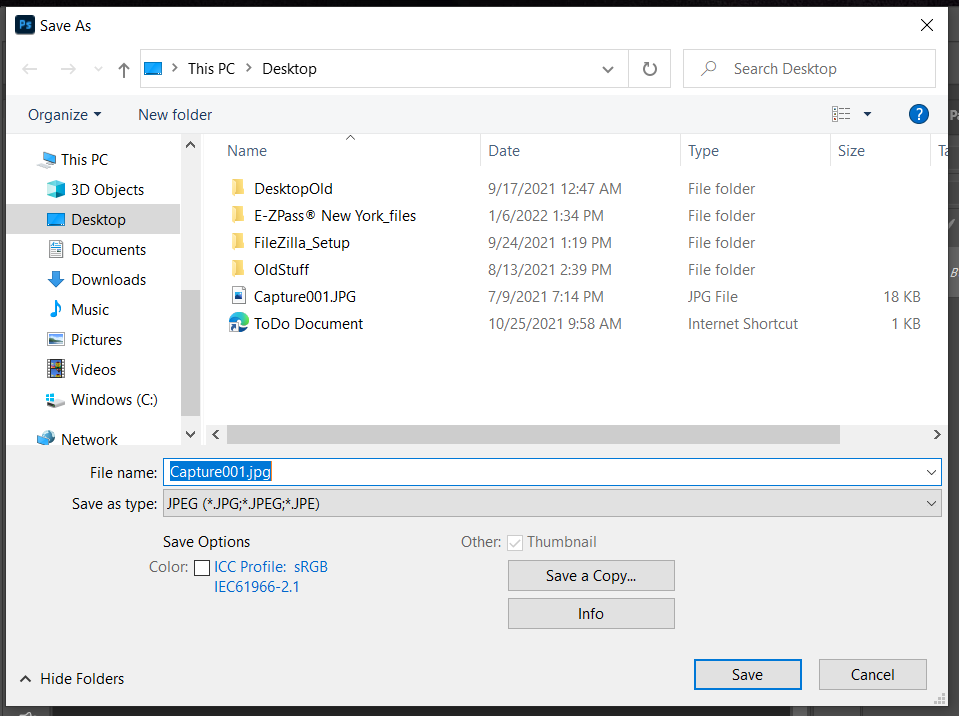
Save As Dialog Boxes


Reserve